
Pen & Marker
Sketch a thought or highlight several important rows and controls across a page.
 Aniloom
Free screenshots and annotation for Mac
Freeze your screen before selecting an area. Draw an arrow, highlight a detail, or add a note directly on the frozen image.
Copy a PNG, save PNG or JPEG, share through macOS, or dismiss the overlay when your explanation is done.
Free to use. All features included.
One download for Intel and Apple silicon. No Rosetta required.
 Download
Development version 0.17.1 for Intel and Apple silicon. Intel testing pending. Not notarized; macOS may block opening.
Explore the capture workflowCapture on request
Activate AniShot with a shortcut or the menu bar icon. It captures the screen before you select an area. Your applications keep running underneath.
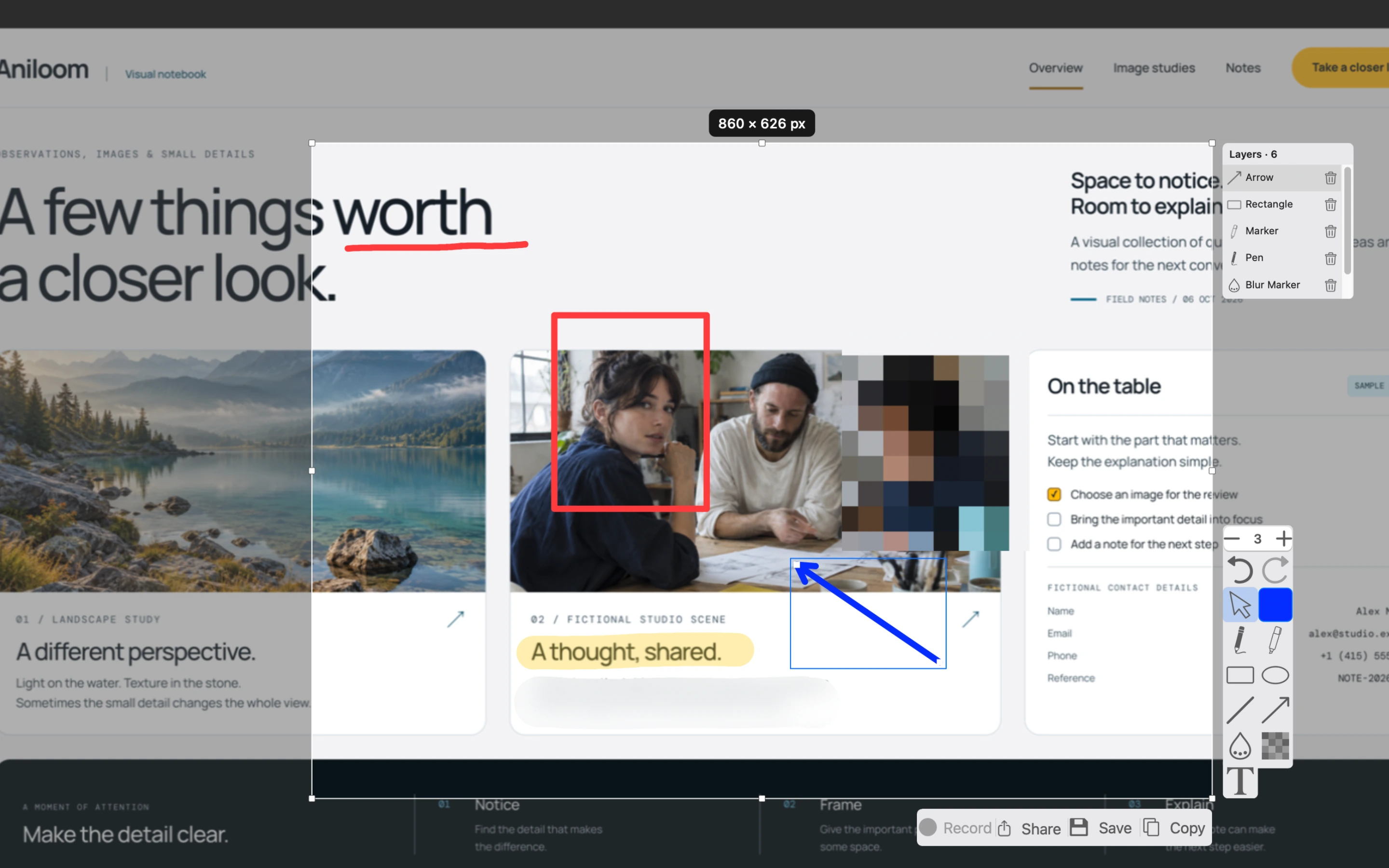
Add the explanation where it matters.
View full-size annotation screenshotThe captured image stays still while you decide what to show. Capture starts when you request it; there is no continuous screen-history buffer.
Frame the relevant area on one display, then annotate directly in the same overlay.
Mark the part that matters. Choose whether to copy, save, or simply close the overlay.
A clear explanation
Circle the problem, point to a control, or sketch the next step on the frozen image. You can close the overlay after the explanation without copying or saving a screenshot.
During a call, check that your sharing mode includes the AniShot overlay and that participants can see it. AniShot draws on a frozen image; your meeting application handles screen sharing.
Drawing tools
Change size and color where the tool supports them. Blur and pixelation use size controls. Separate Tools and Layers panels adapt to the space beside your selection.
Sketch a thought or highlight several important rows and controls across a page.

Point to a control or connect the parts of your explanation.

Frame an area or circle the problem.

Add a note directly on the screenshot with a transparent background.

Visually obscure a face or private field before sharing. These effects are not a secure-redaction guarantee.

Move, resize, or edit an individual annotation object.
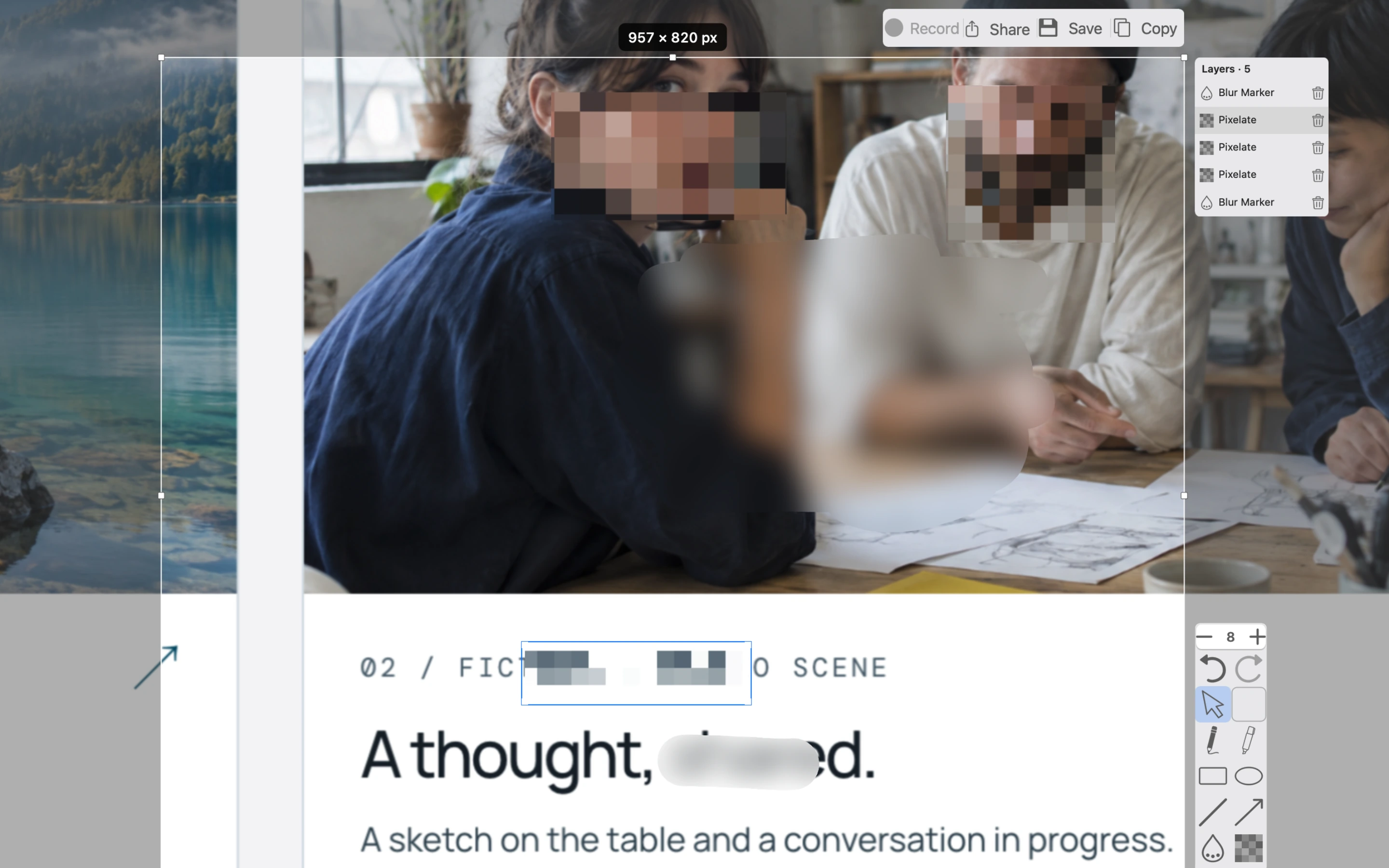
Choose what to show. Blur or pixelate faces and details before sharing.
View full-size blur and pixelation screenshotBlur and pixelation are visual effects, not a guarantee of irreversible anonymization. Inspect the exported image before sharing. The example uses fictional people and scenery.
Editable annotations
Notice that an earlier arrow needs another color, or a text note belongs elsewhere? Select it on the image or in Layers and change it, even after adding other marks. Move, resize, restyle, or remove individual annotations. Drag a tool icon in Layers to change the order. Undo and Redo let you revise your edits.
Copy, save, or share
Copy an annotated PNG into a message or document, save PNG or JPEG to a folder, or share through macOS. You can also dismiss the overlay without exporting.
Copy a PNG to the macOS clipboard and close the overlay.
Choose a destination in the native Save dialog. Cancelling or failing to save keeps your session open.
Close without exporting. While editing text, the first Escape cancels that edit.
Local processing
AniShot processes screenshots and annotations on your Mac. It captures when you request it and releases the session image when you close the overlay. The current app has no screenshot-upload service or account requirement.
Copy puts a PNG on the macOS clipboard. Save writes to the destination you choose. Share passes the annotated image to your selected macOS service, which may send it off your Mac. Clipboard syncing, cloud-synced folders, and sharing services follow their own settings.
Diagnostic history stays on your Mac until you press Send Report in Settings → Support. The optional report includes recent actions, error codes, app and Mac details, a random installation ID, and any comment you choose to write. Screenshot content and annotation text are excluded from diagnostics. Read the AniShot privacy policy.
Your setup
Use Shift+Command+9 or one custom capture shortcut. Print Screen can be used alone, including its F13 mapping on macOS; physical keyboard compatibility is still being verified. Appearance scales Tools, Layers, and the action panel from 50% to 150% without changing drawing widths or exported pixels.
Launch at login is enabled by default; you can turn it off in the menu bar menu. You can also choose whether an outside double-click dismisses the overlay.
First setup asks for macOS screen access, then your shortcut. AniShot does not change system shortcuts. Free a reserved custom binding in macOS Keyboard Shortcuts or the app that owns it, then record it again.
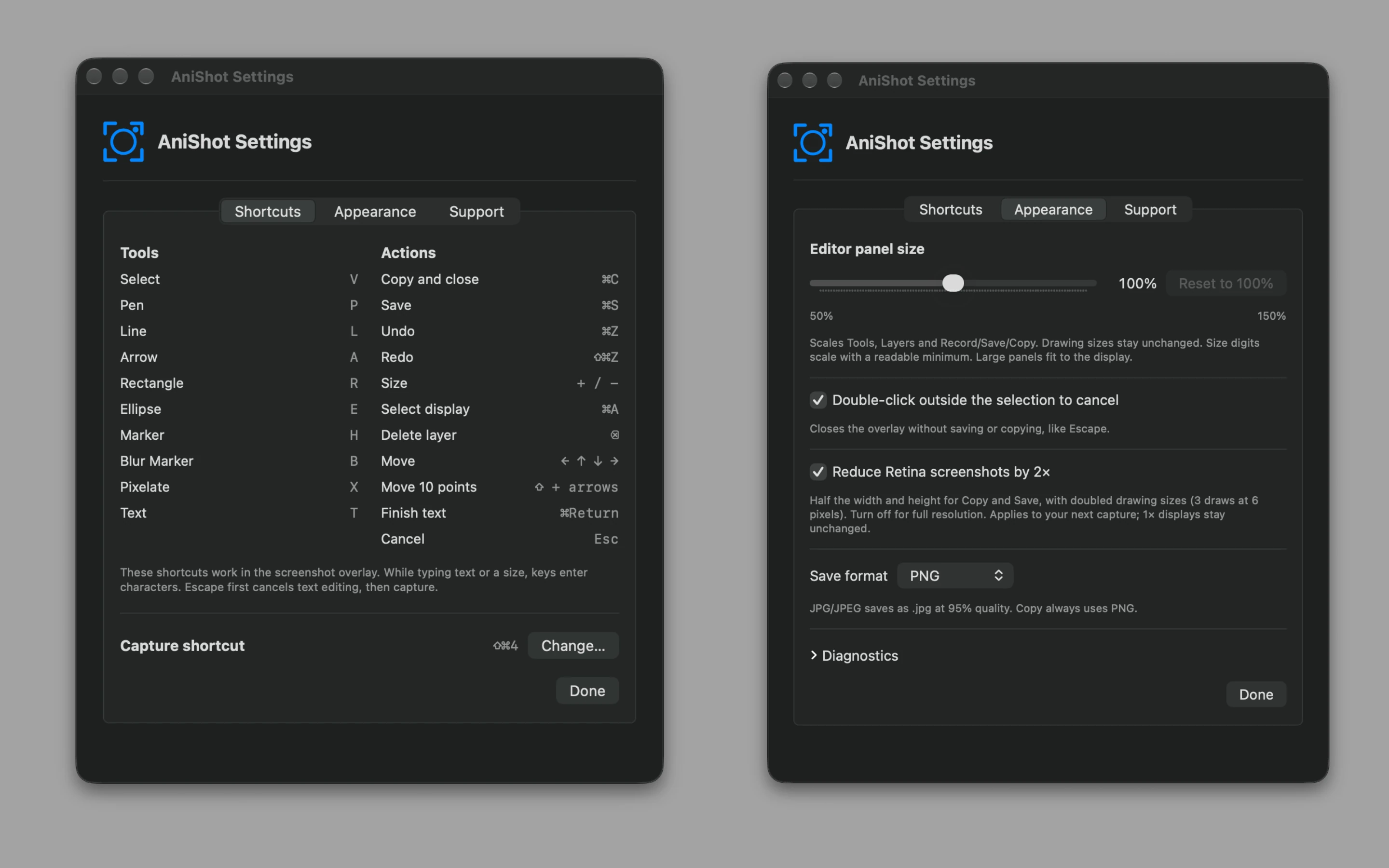
Adjust panel size, Retina resolution and save format.
View full-size settings screenshot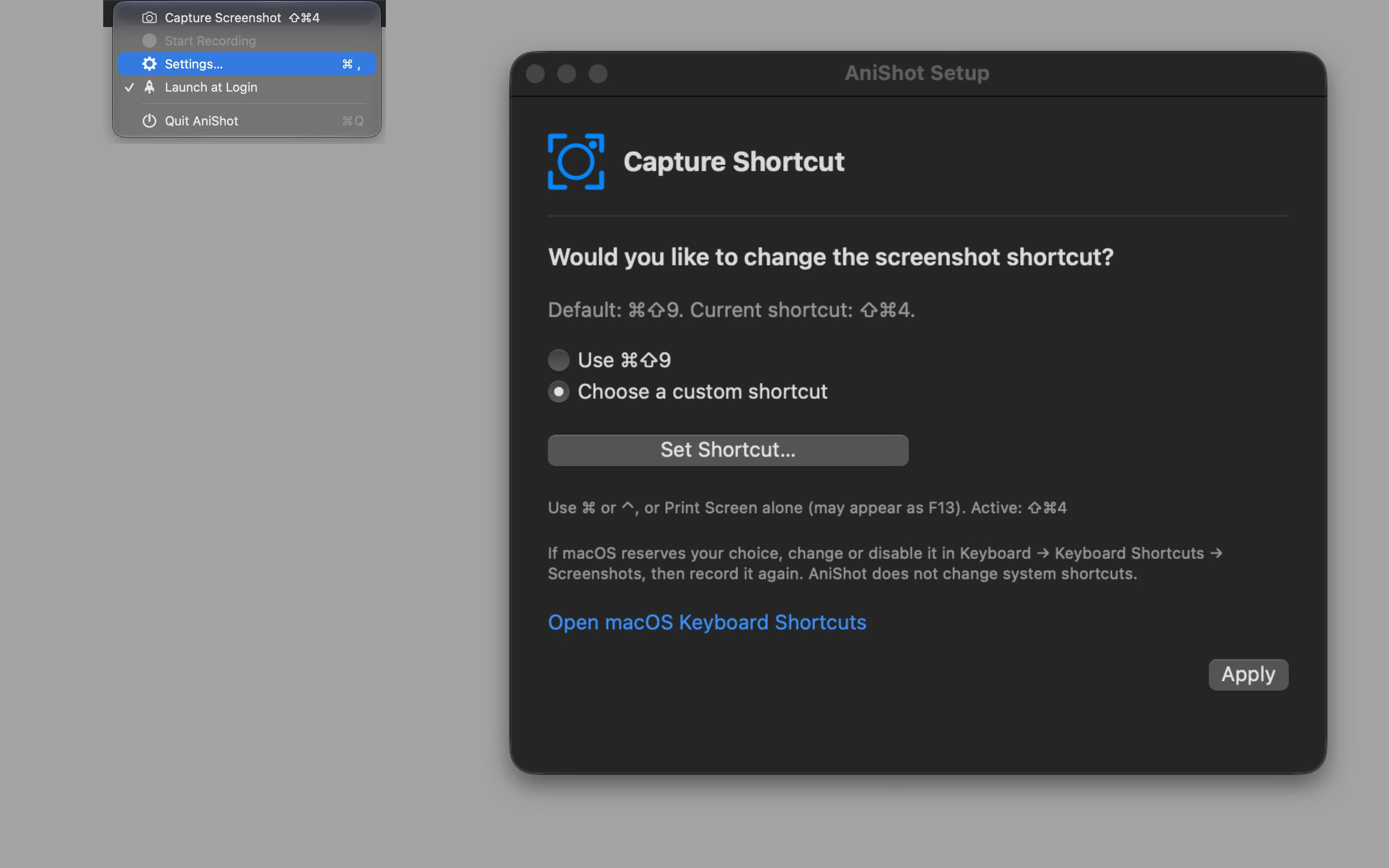
Choose the capture shortcut that fits your workflow.
View full-size capture shortcut screenshotAvailability and compatibility
You can download the development build for testing. It is Apple Development signed, not notarized, and its recorded Gatekeeper assessment was rejected. macOS may block opening it. A free Mac App Store release is planned, not live.
AniShot is completely free to use. All features are included, and we currently plan to keep it free.
The Universal application and its bundled update components contain native Intel and Apple silicon code. Apple silicon runs without Rosetta. Real Intel hardware testing remains pending. Native architecture does not guarantee compatibility with every future macOS release.
macOS uses this permission for screen capture, including still screenshots. AniShot captures only when you request a screenshot; it does not record video or audio. Setup guides you to the screen-access setting. If access is missing, allow AniShot in Privacy & Security under Screen Recording or Screen & System Audio Recording, then reopen if macOS asks.
No. Use Shift+Command+9 or choose one custom shortcut. AniShot leaves system shortcut settings unchanged. If a custom combination is already reserved, free it in macOS or the app that owns it, then record it again in AniShot.
You can draw on a frozen screen and dismiss the overlay without exporting. Check that participants can see AniShot in the selected sharing mode. Meeting compatibility is still being verified.
The current app processes screenshots and annotations locally and has no screenshot-upload service or account requirement. Clipboard syncing, saved-file syncing, and meeting sharing depend on other software and your settings.
From version 0.11.0, AniShot checks for updates daily by default. You can disable automatic checks or check manually in Settings → Updates. Installation asks for confirmation. Update requests never include screenshots or drawings.
Screen recording is not implemented. AniShot copies PNG screenshots and saves PNG or JPEG images.
The Universal development download contains native Intel and Apple silicon code and requires macOS Sonoma 14 or newer. The hardware target includes MacBook Air and Pro from 2018 onward. Real Intel hardware and minimum-OS testing remain pending.
October 3, 2026: AniShot 0.8.6 build 52 on M1 Max, macOS 27.0.1, two displays (2560 × 1440 and 3024 × 1964). All 30 captures across two series (20 + 10), including initial captures: mean 85.55 ms, median 82.05 ms. Timing covers the terminal request through overlay drawing and confirmed focus, not physical hotkey latency or display scanout. Results vary; 86 ms is the rounded average, not a maximum.
AniShot Screen Capture
Freeze the screen, annotate the part that matters, and choose whether to copy, save, or simply close it.
Free to use. All features included.
DownloadDevelopment version 0.17.1 for Intel and Apple silicon. Intel testing pending. Not notarized; macOS may block opening.